Registration Renewal
The Registration Renewal section allows you to review registry renewal applications and either approve or reject certificate renewal requests. Follow the steps below to review and take necessary action on the pending registration renewal applications:
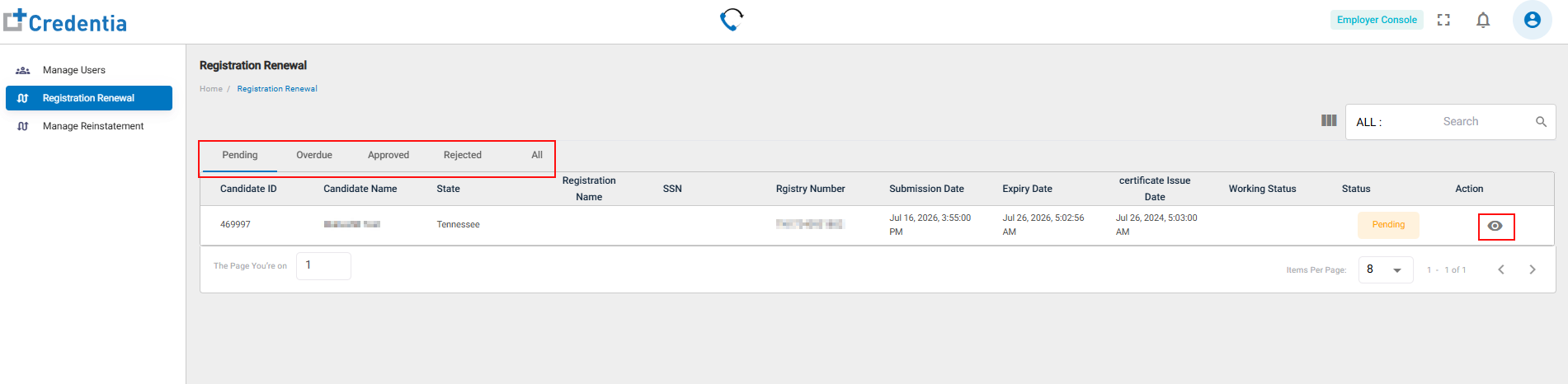
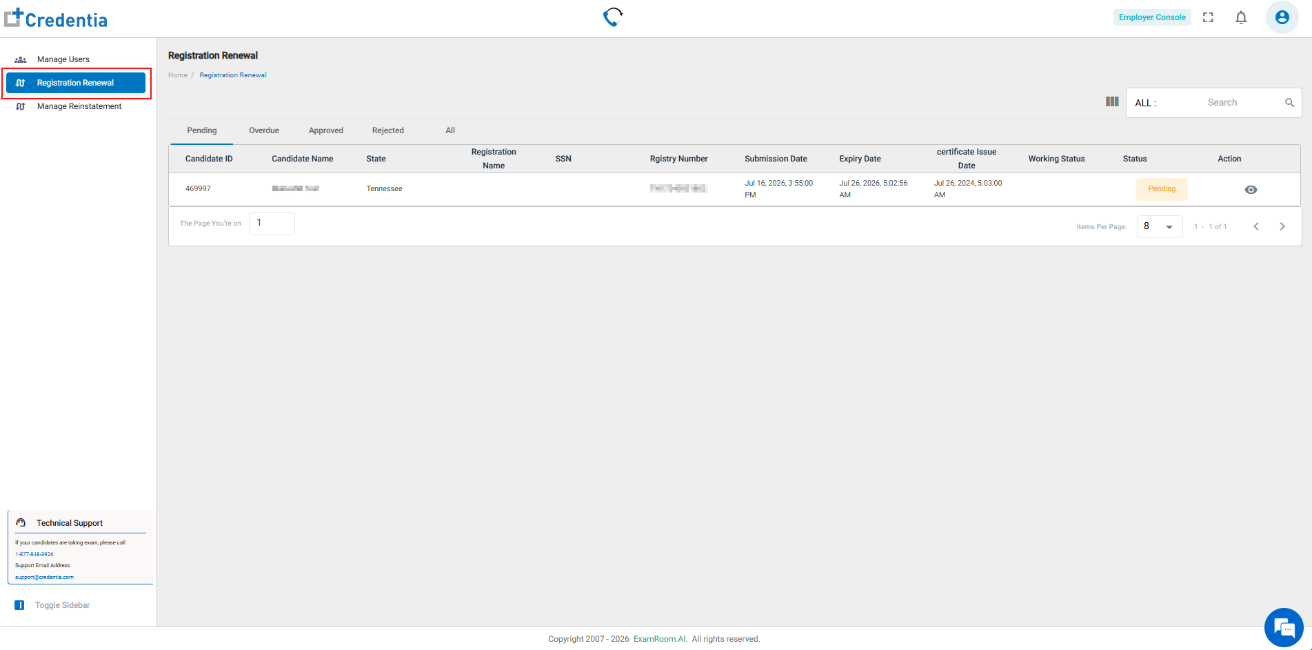
- Click Registration Renewal from the side menu.
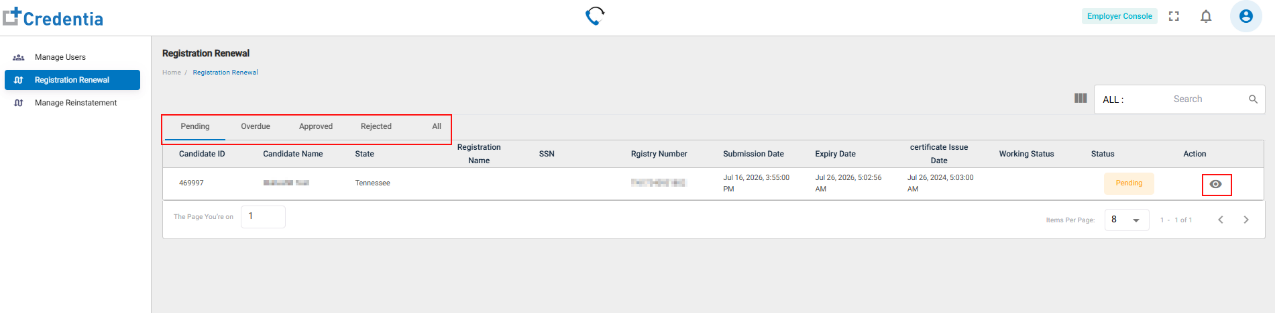
Note: The application displays the Registration Renewal page. - In the Registration Renewal section, the renewal request applications are displayed in a table format. There are multiple tables categorized by status, such as Pending, Overdue, Approved, Rejected, and All. Click on any one of the following tabs to view the list.
- Pending: Click to view only the pending applications.
- Approved: Click to view only the approved applications.
- Rejected: Click to view only the rejected applications.
- Overdue: Click to view only the overdue applications.
- All: Click to view all the applications.
- The table shows the following renewal request application details:
Note: Refer to the Filter and Search Options section to know how to customize which columns are visible.
- Candidate ID – A unique identifier assigned to each candidate.
- Candidate Name – Displays the full name of the candidate requesting the registration renewal.
- State – Specifies the state where their registration is linked.
- Registration Name – The name of the registration or program the candidate is enrolled in.
- Submission Date – The date the candidate submitted the registration renewal request.
- Expiry Date – The date when the current registration will expire or needs to be renewed.
- Working Status – Indicates whether the candidate is currently employed or not. The name of the internal user who has viewed the request or is working on the request.
- Status – Reflects the current status of the registration renewal.
- Action – Options to view and manage the renewal request.
Approve or Reject the Registration Renewal Application
- Click Registration Renewal from the side menu.
Note: The application displays the Registration Renewal page.
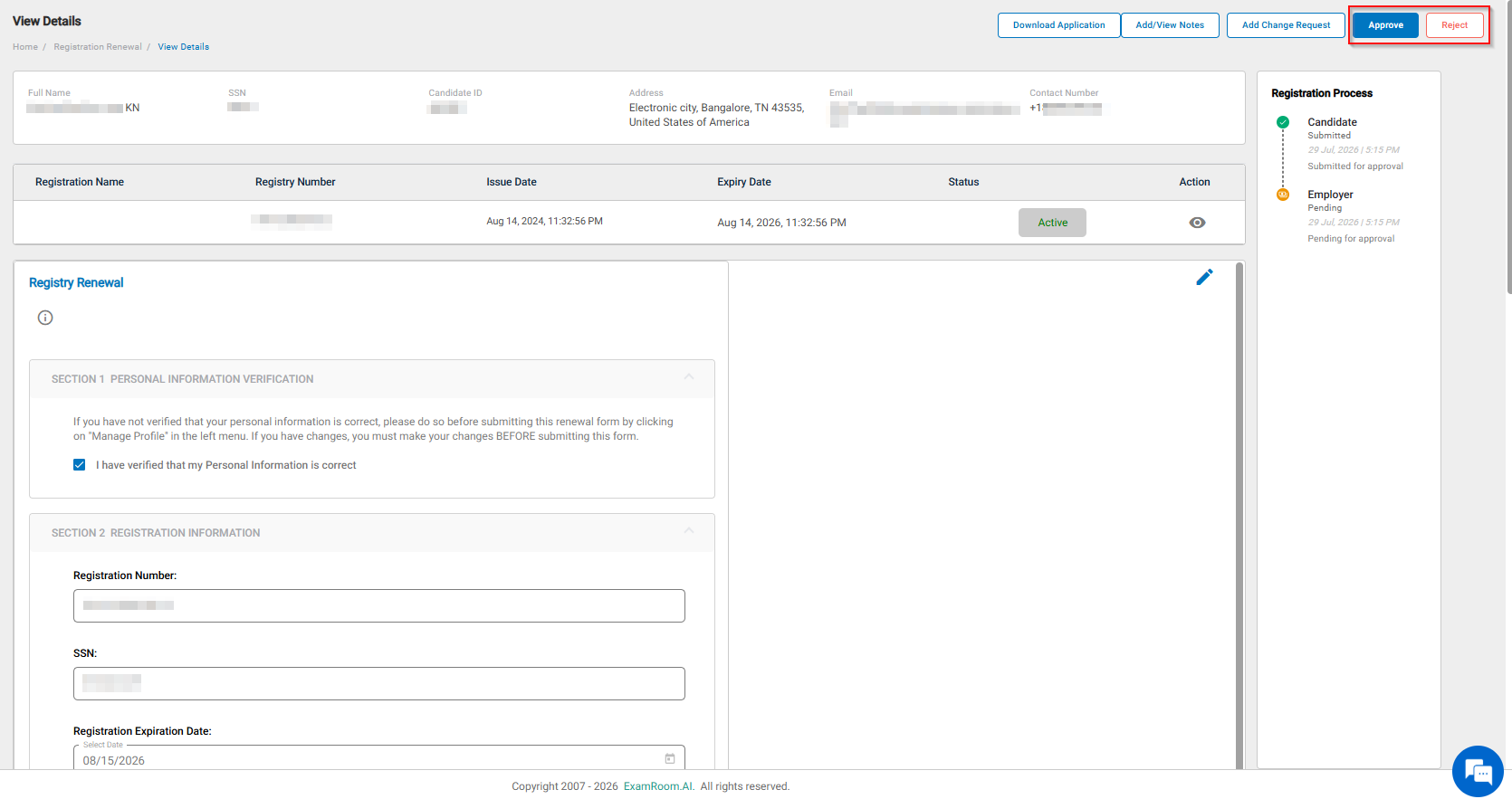
- Click the View icon under the action column to view the Registration Renewal Application of the applied Candidate.
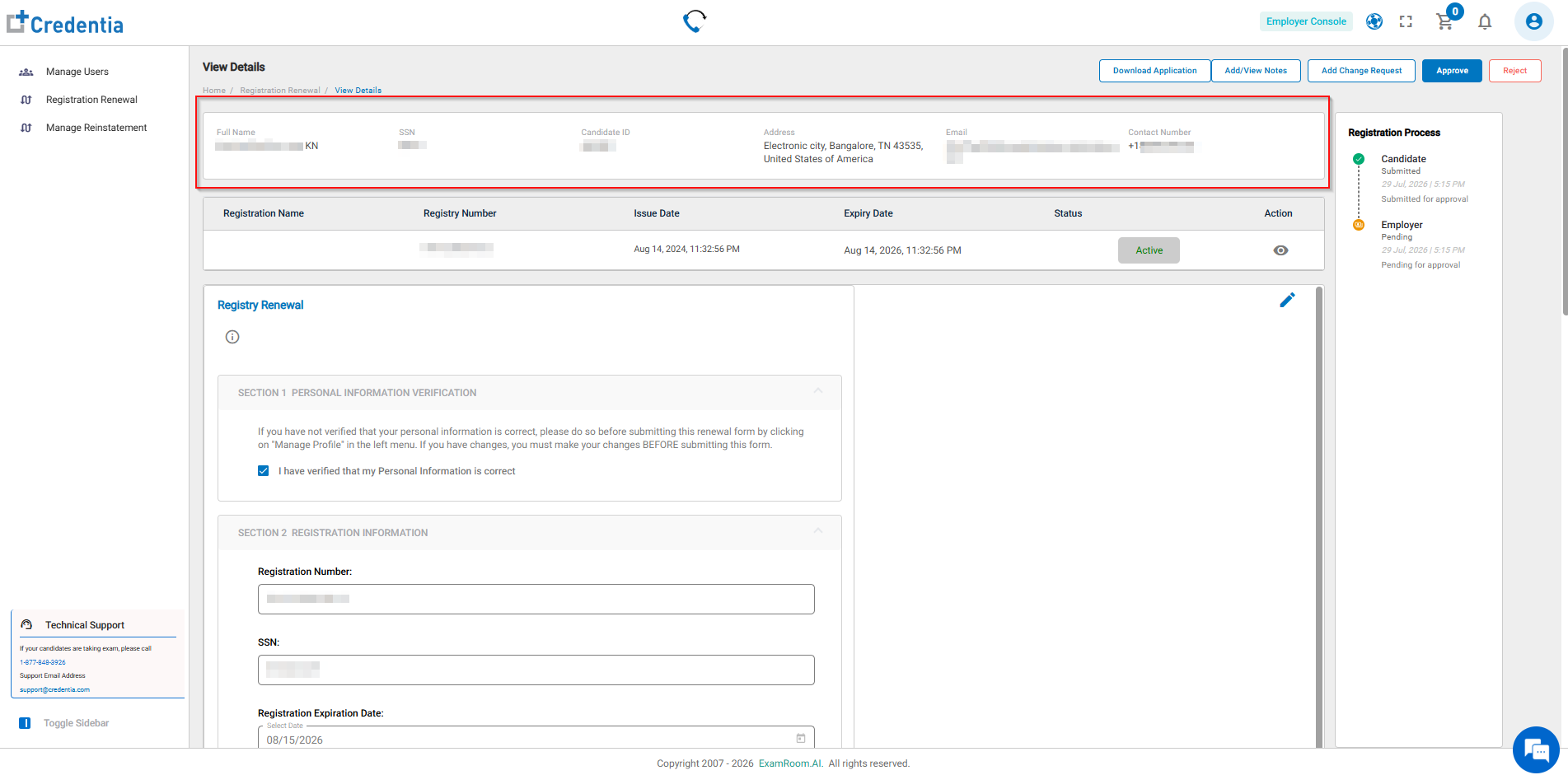
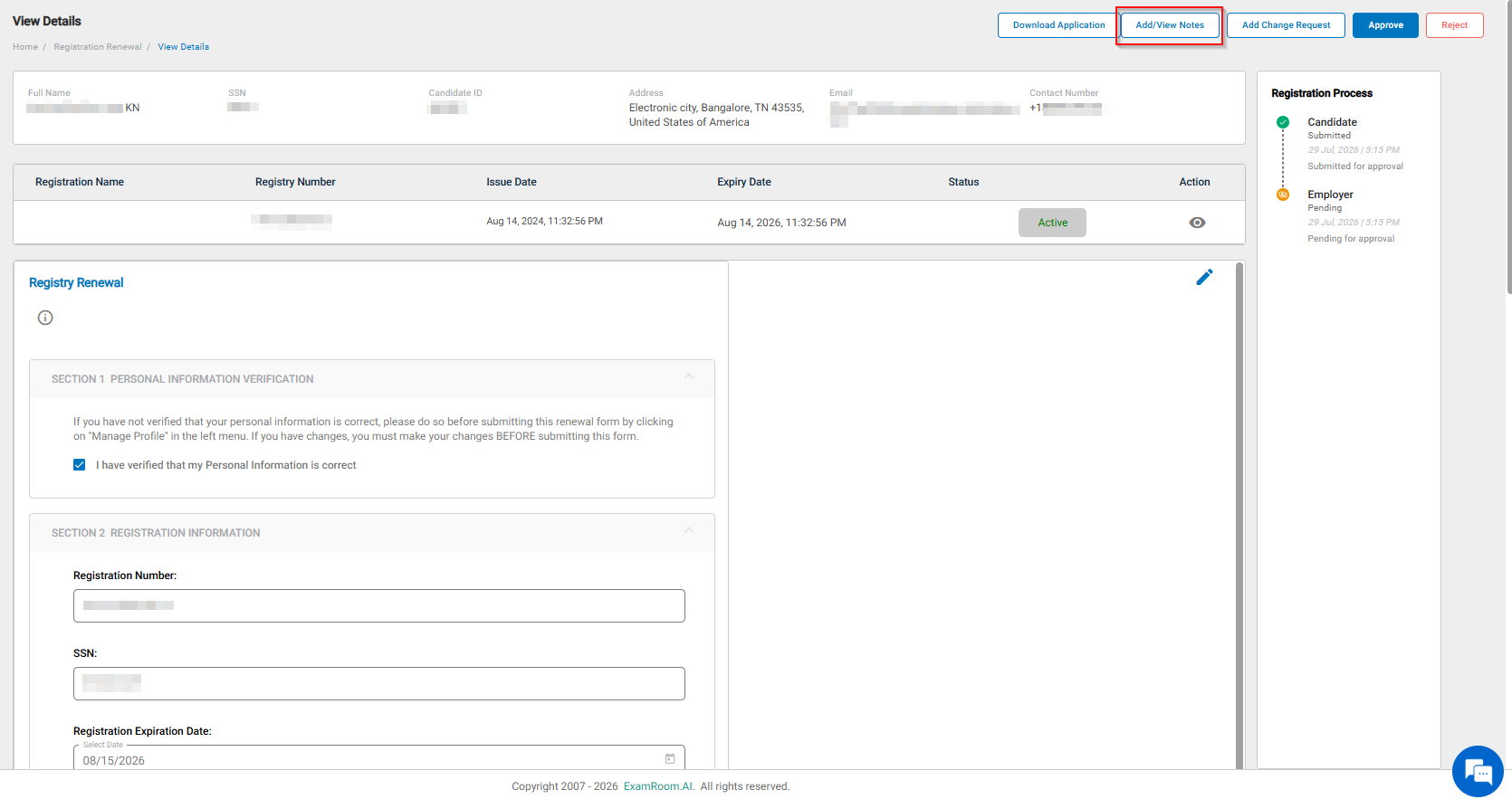
Note: The application displays the View Details page. - In the top section, you can see the Candidate details such as Full Name, Security Number, Candidate ID, Address, Email, Contact number.
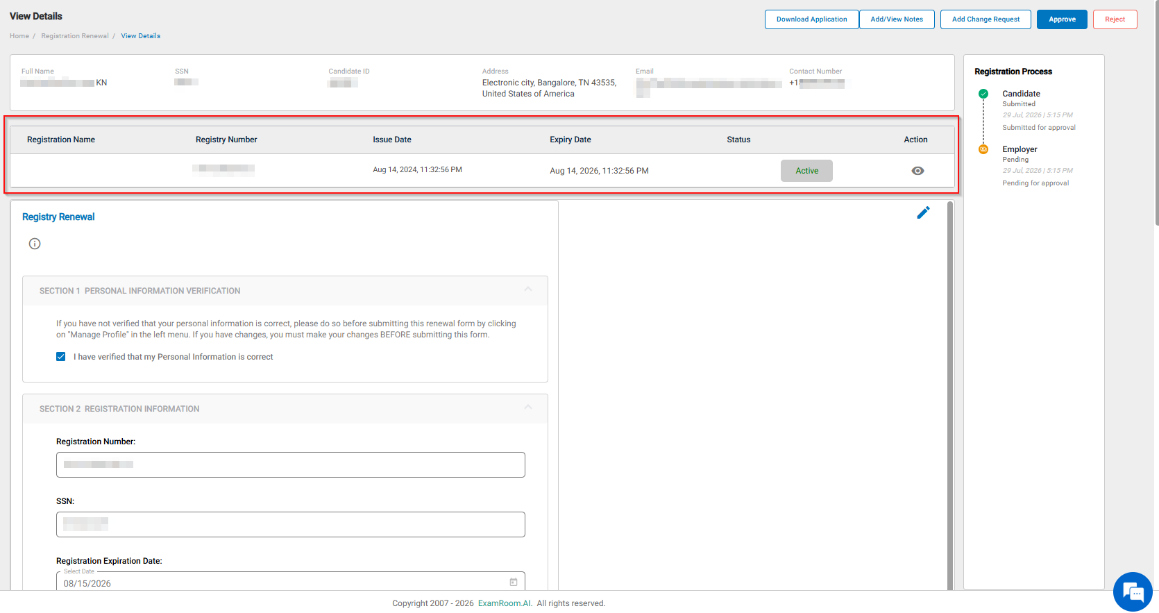
- The candidate's existing registration details are provided, including Registration Name, Registration Number, Issue Date, Expiry Date, and current Status. Additionally, you can preview the current certificate under the Action section before proceeding with the renewal request.
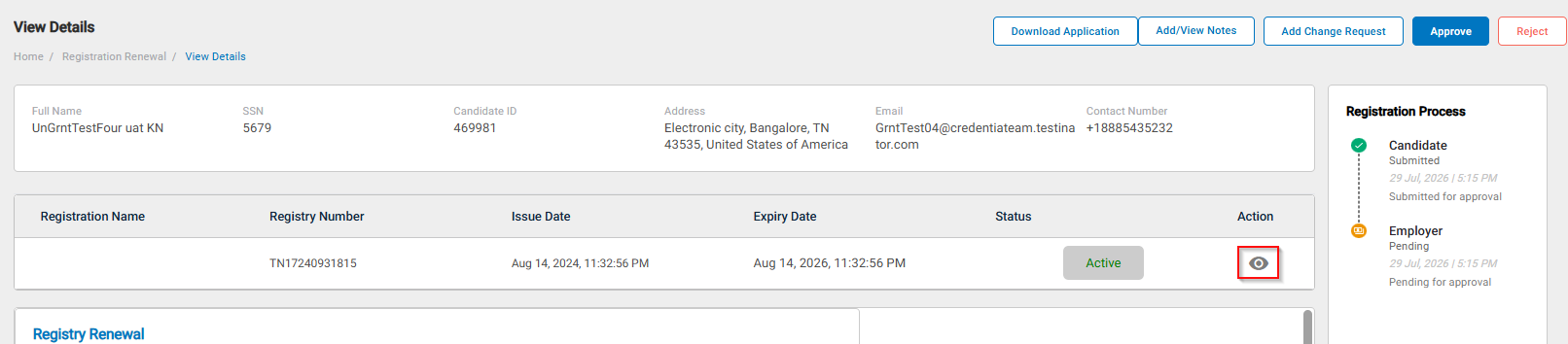
- Click the View icon to view the existing/previous registration certificate.
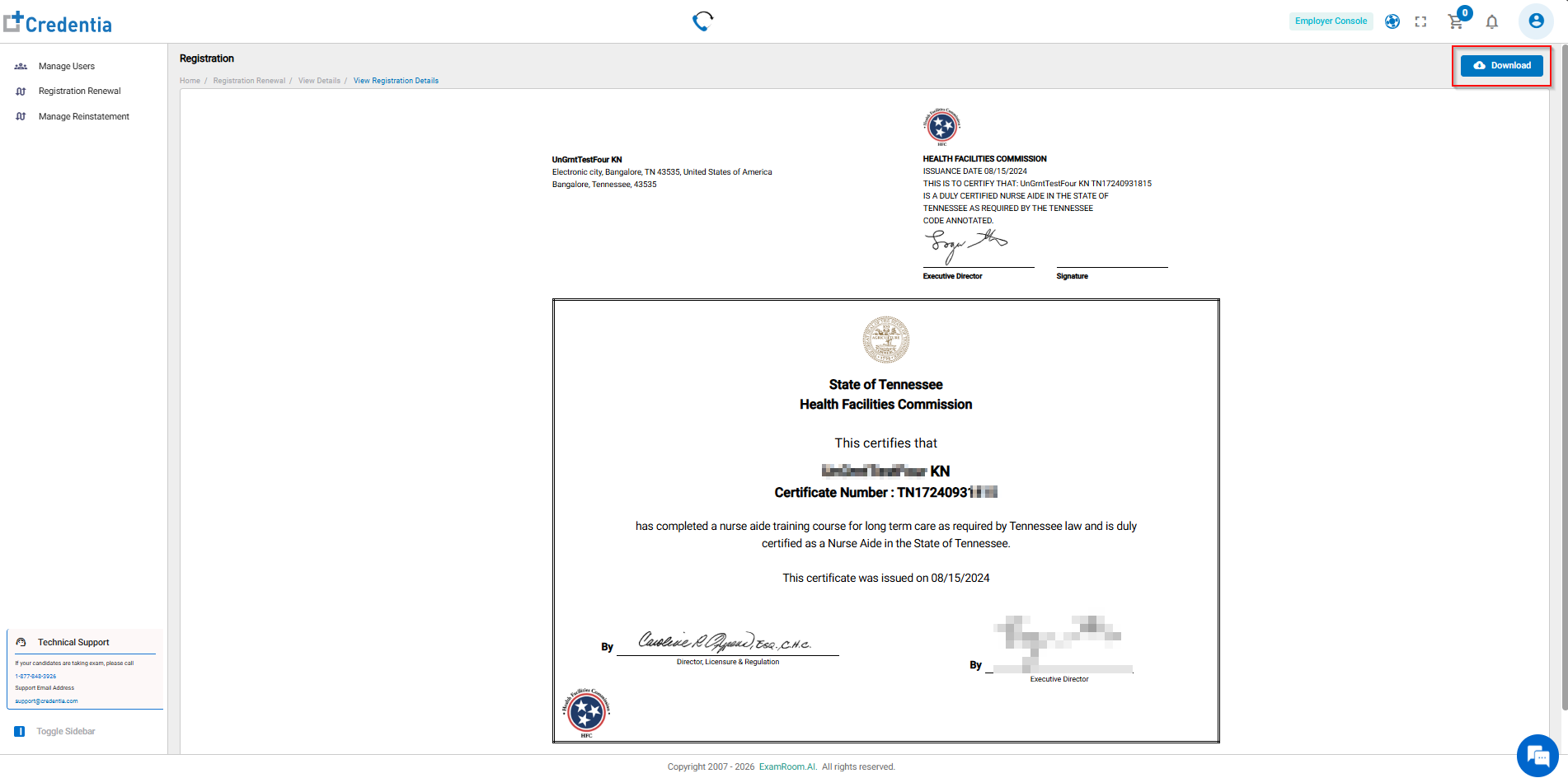
- Once you select the View icon to view the certificate, a preview of the certificate will display, and you also have the option to download.
- Click Download Application to download the certificate to your local device.
- Click the View icon to view the existing/previous registration certificate.
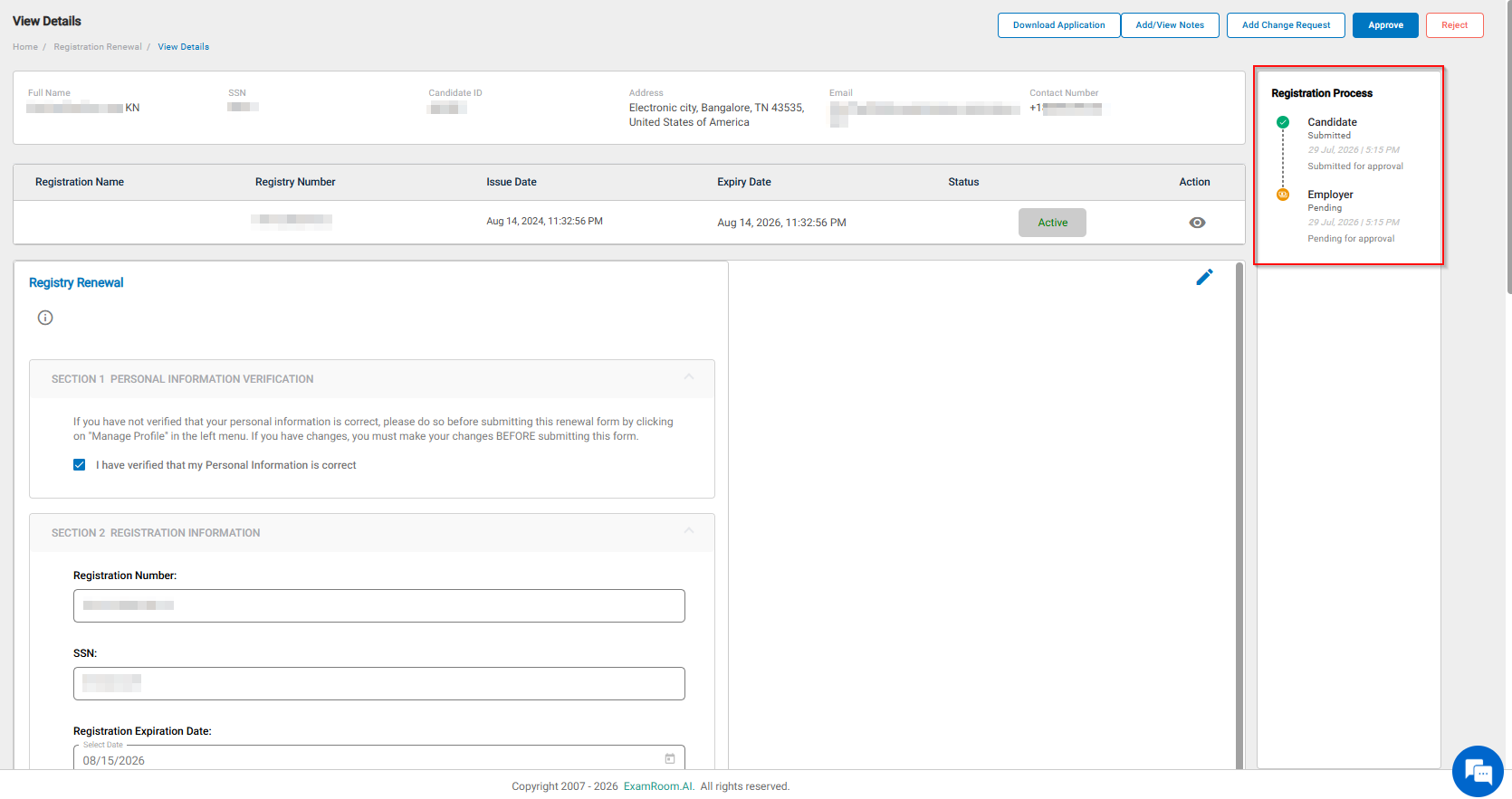
- View the Registration Process section to know the renewal request application's current status before taking any action.
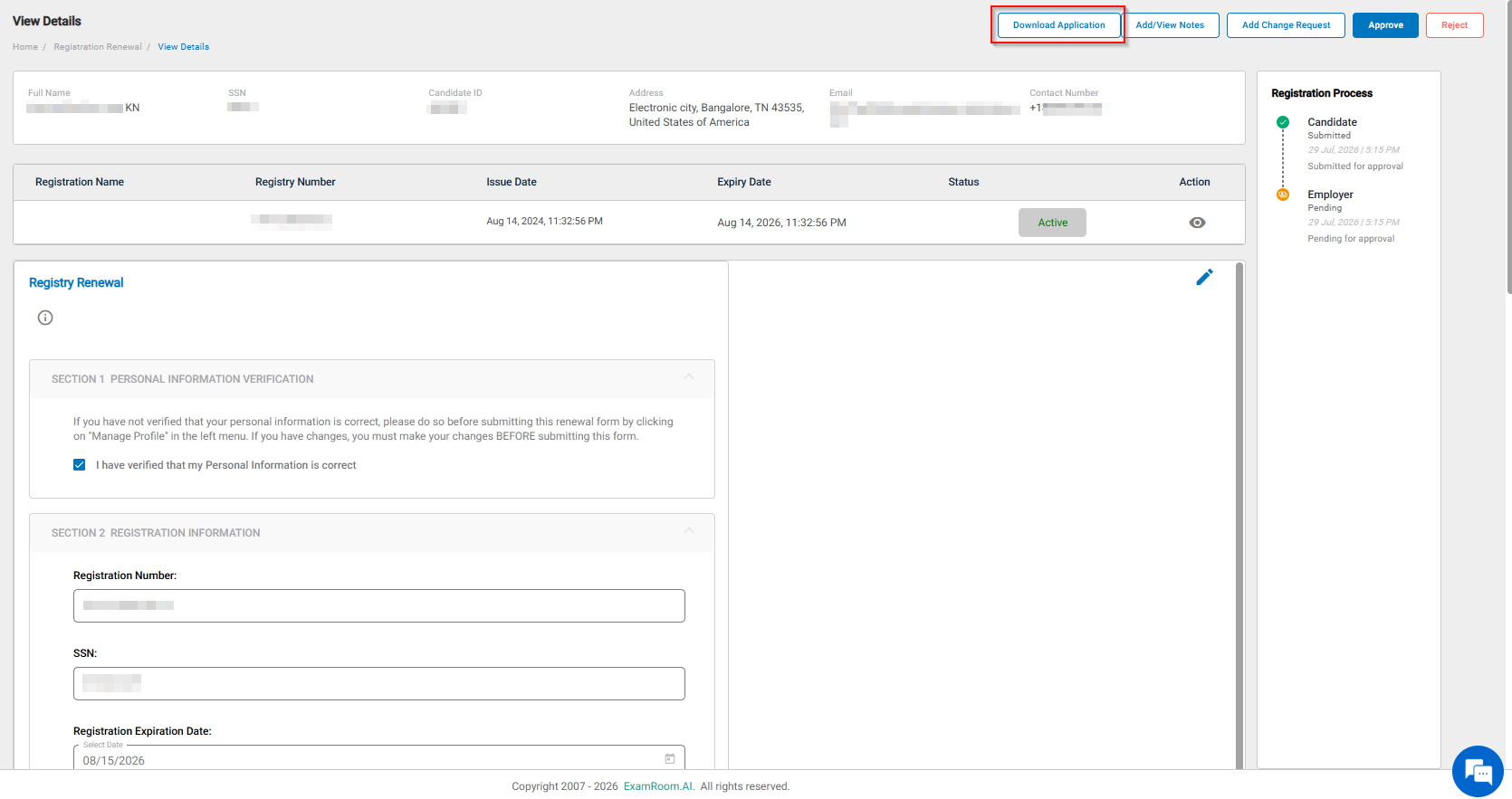
Note: In the application process section, we can see whether the application has been submitted, drafted, or pending, along with relevant dates. - Click Download Application to download a copy of the submitted renewal request form to your local device.
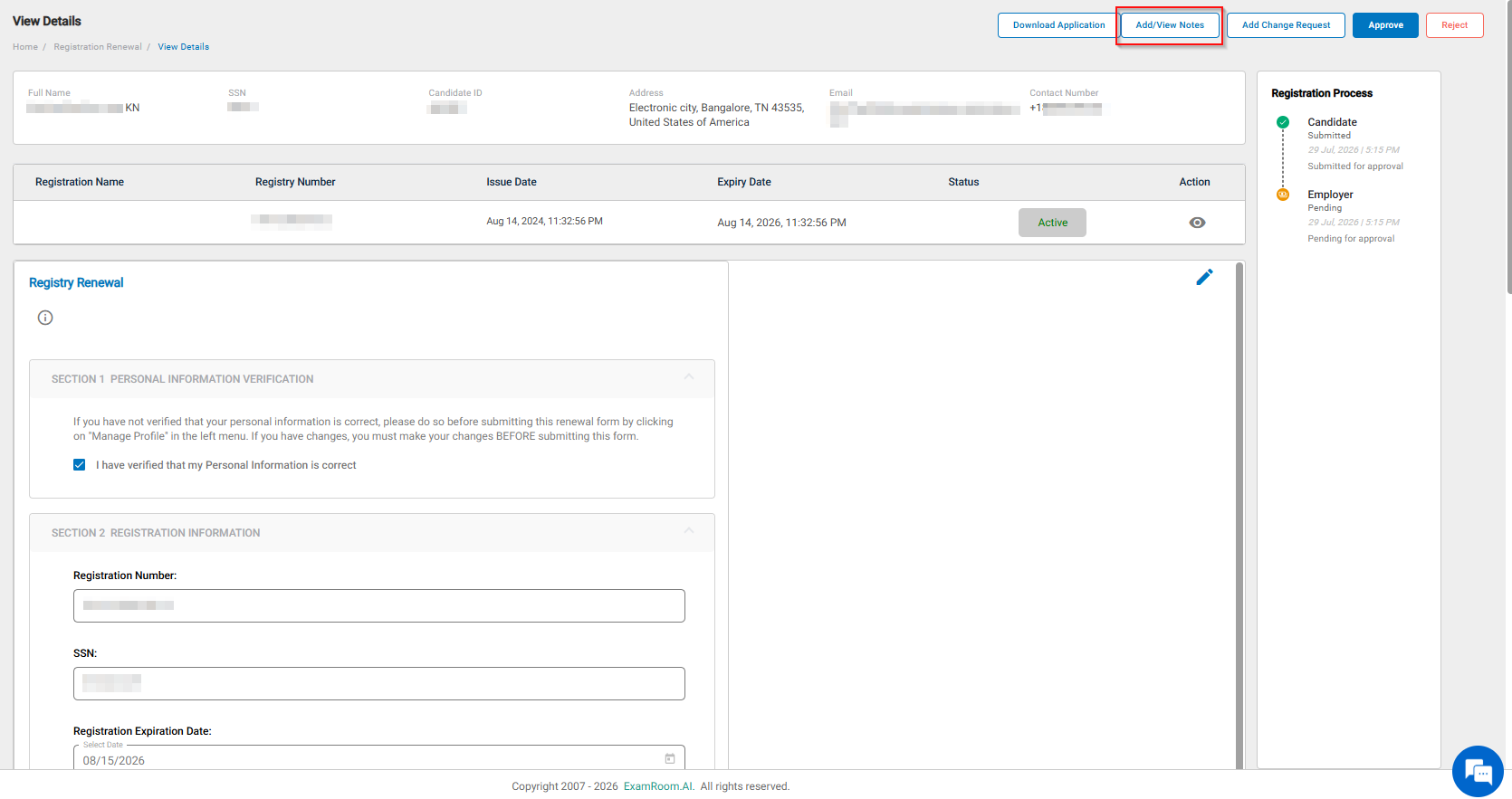
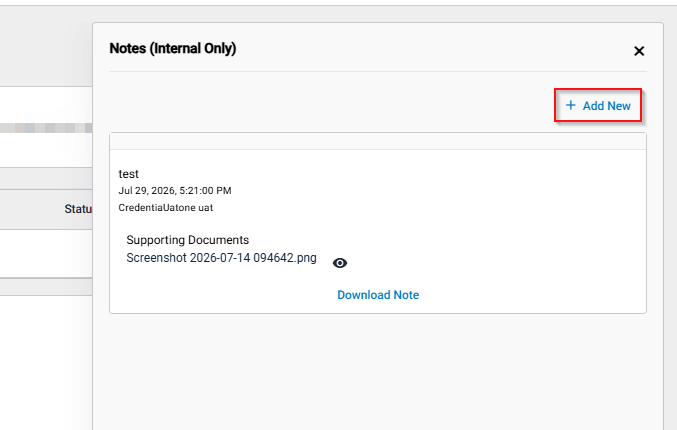
- Click the Add/View Notes button to view or add internal reference notes.
- You can view the previous notes if added and add new. Click the Add New option to add new notes for internal reference.
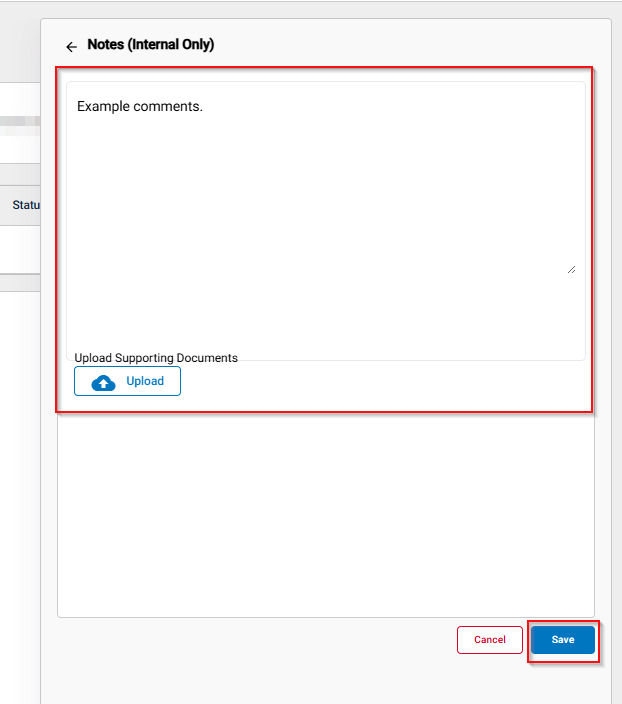
- In the Add New section, enter the Description.
- Click Upload to upload the Supporting Documents.
- Click Save.
Note: Once a note is saved, internal users can view the notes.
- You can view the previous notes if added and add new. Click the Add New option to add new notes for internal reference.
- Click Add Change Request to return the renewal request application to the candidate for necessary modifications.
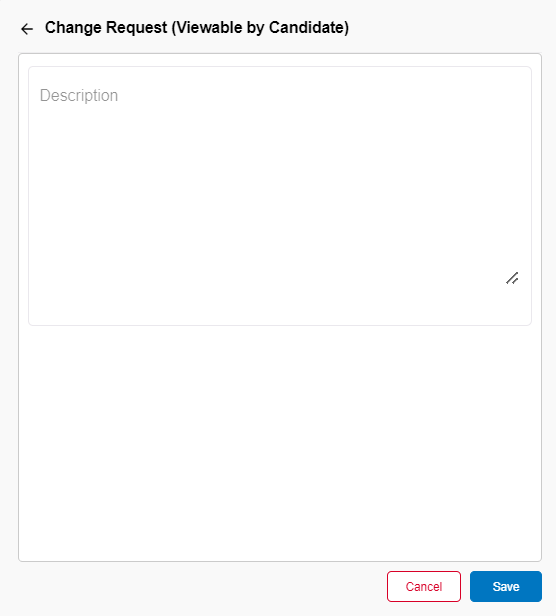
Note: This section displays the Change Request (Viewable by Candidate) details. If any.- You can view the previous change request details if added, and to add a new one, click the Add New option.
- Enter the Description.
- Click Save to send the application back to the candidate with the requested changes.
Note: Once the Change Request is saved. Candidates can view the comments.
- Click Approve to approve the application.
- Click Reject to reject the application.